During my PhD I have come across a number of tools that have helped make my PhD journey a little less painful. A lot of these I have either come across accidentally on Twitter (shoutout to #AcademicChatter), or I used in my previous life in my career in communication, marketing and project management. Below is a brief overview of these tools to give you an intro to see if it’s something that might be of use to you.
Notetaking and mind mapping
Rocketbook
- https://getrocketbook.com.au/
- Write by hand
- Scan the page and QR code to send notes to the cloud or email.
- Can convert handwriting to text.
- Then wipe away with damp cloth and reuse!
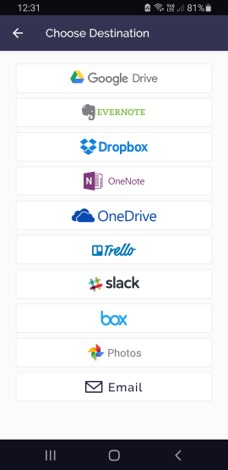
This is a book with special paper and you need to use a specific pen, a Pilot Frixion pen, but they’re easily available at stationery shops like Whitcoulls. The handy thing with Rocketbook is that you can scan the pages directly to a folder, and then wipe the page with a damp cloth and to erases your writing. I have my laptop synced with OneDrive. I’ve then set up the location on the Rocketbook app (you can have up to 7 pre-set locations) and then I select the one I want, and scan it through the app on my phone, and it uploads to my folder on my laptop. It’s handy for taking notes at your supervision meeting, then you can set it up to scan it to a dedicated meetings folder. If your writing is clearer than mine, there is also a function to email it to yourself and it converts to text. Rocketbook works with a range of cloud based apps, including Google Drive, Dropbox, and OneNote. The book costs between $50-$70 depending on which one you order, but it’s reusable and lasts a long time.
Miro
- https://miro.com/
- Online whiteboard
- Helpful for online collaboration
- Has a number of templates or you can freestyle
Getting organised – big picture/monthly ‘to dos’
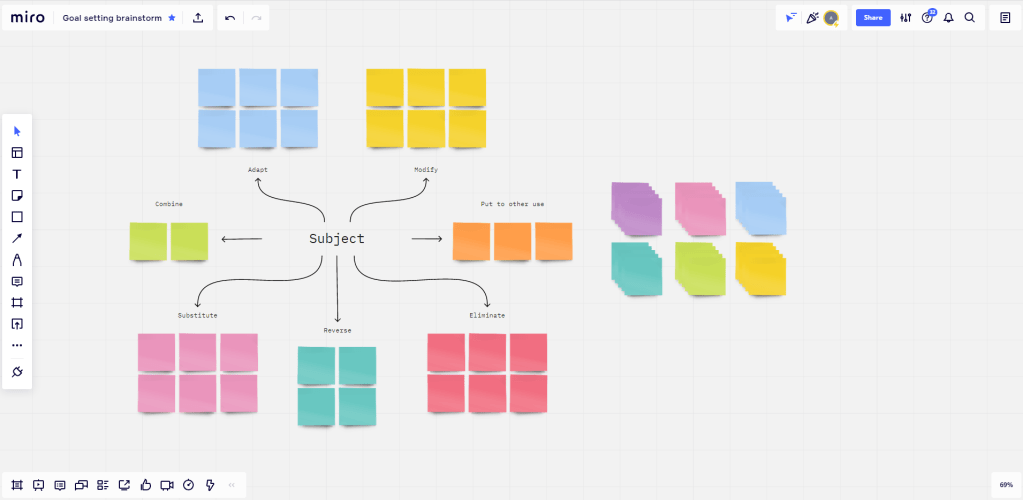
I’m someone who likes to be able to see the big picture of what I’m doing. I saw this from Dr Tara McAllister, which is the post it note version tracking her publications.

Trello
- https://trello.com/
- Can be used as big picture/tracker or ‘scrum board’.
- Can also add in more details if you wish.
You can also use something like Trello. It’s an online project management tool, it is web based and has an app. The app is handy so if I have an idea when I’m at the supermarket I can jot it down under the right chapter. I use it for a high level overview to track my progress with my chapters and publications, but it has the functionality for more details, to be used by teams on a project and you can add deadlines. I have the free version, but if you upgrade you get more options. Pricing is not too bad, $USD5 per user per month for the standard version, or $USD10 for premium.

Work out the details
- Basecamp (personal not business version) https://basecamp.com/
- Evernote https://evernote.com/
- OneNote
All three are helpful for projects, collaboration when people are in different locations, can link with other platforms, and keeps all your project stuff in one place.
Basecamp
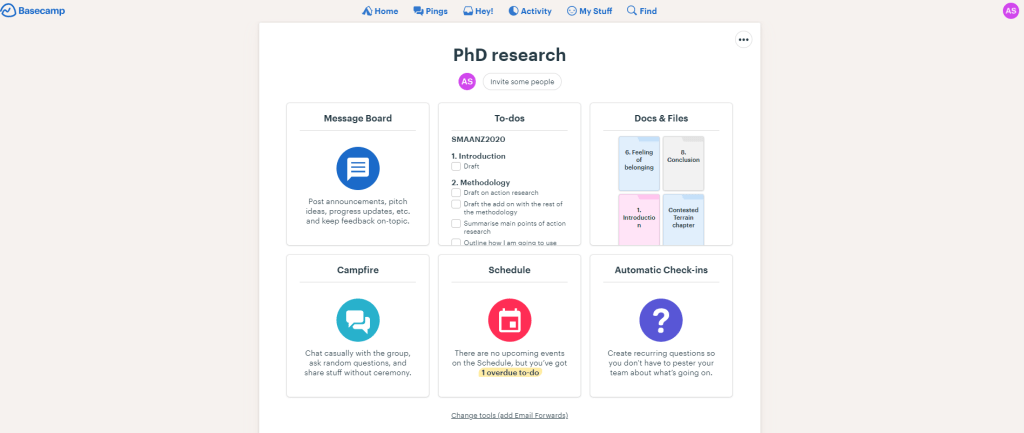
It can be web based, there’s an app for your phone and an app for your laptop. It is helpful for collaborating when people are in different locations, you can link it to your calendar so you can add in deadlines here and it pulls them over. It’s helpful when you’re going through lots of drafts like for a chapter or article – you can add in the document or the link from Google Docs, OneDrive or Dropbox, and if you’ve added your supervisors they will get an email notification that the new version is up. This saves having multiple versions and emails. There’s also space for messages, the campfire is a live chat. So it keeps everything to do with that project in one place. Basecamp is expensive for the premium version, it’s very much targeted for businesses, but I think the personal version (which is free) is sufficient for a PhD.
Evernote
Like OneNote, it’s like an electronic notebook. Like Basecamp, Evernote can be web based, or app based on your phone and laptop. There are templates for pages which is helpful. I have a notebook for each of my chapters and within each one is a dashboard, which is one of their templates. It has where I’m up to, due dates, a space for ideas or notes which I can access it easily through the app on my phone if I’m out and about, type down what I’m thinking, and come back to it later.
Personally, I prefer Evernote over Basecamp. I think because I can see all the notebooks, which is reassuring and calming for my mind to be able to see everything laid out, to see the structure.

Daily ‘to dos’ or your hot list
Even with all the digital tools, to make sure I still get stuff done, I still like a paper version that sits on my desk, in front of me. I use it to list all the things that I need to do that week, and block out times for things.
It has a few names, your To Do list, or your hot list which is stuff that needs to be done now, or dot journaling.
You can use any journal for this but two that I like are Passion Planner or Tuhi. Passion Planner has quite a large following on social media with very inspiring photos. I like them because they have free PDFs on their website, a full year, which you can print out and put in a ring binder
Passion planner
- https://passionplanner.com/
- Has physical planners/diaries but US-based so a bit pricey
- Has free full planners to download on their website: https://passionplanner.com/collections/full-pdfs
- Includes space for personal reflections
Tuhi stationery
- https://tuhi.co.nz/
- Aotearoa/NZ based

Sorting your stuff
Excel database
- Fancy filter dashboard
- Fantastic for literature databases.
- https://youtu.be/Y40Wy1guAiQ (20 minutes, but actual instructions are about 10 minutes.)

Otter
- https://otter.ai/
- Transcribing tool
- Otter is $USD13 p/month for Pro or $USD30 for Business (which has live Zoom notes and captions) but then has an Education discount when you upgrade
- Pretty good at recognising our Kiwi and Aussie accents!
Scrivener
- https://www.literatureandlatte.com/
- Large document organiser
- Can upload existing Word documents (use a # in your original document to separate sections, and choose File-import-split)
- Has a one month free trial to have a play
- Takes a bit of getting used to, but great for organising the sections in your document.
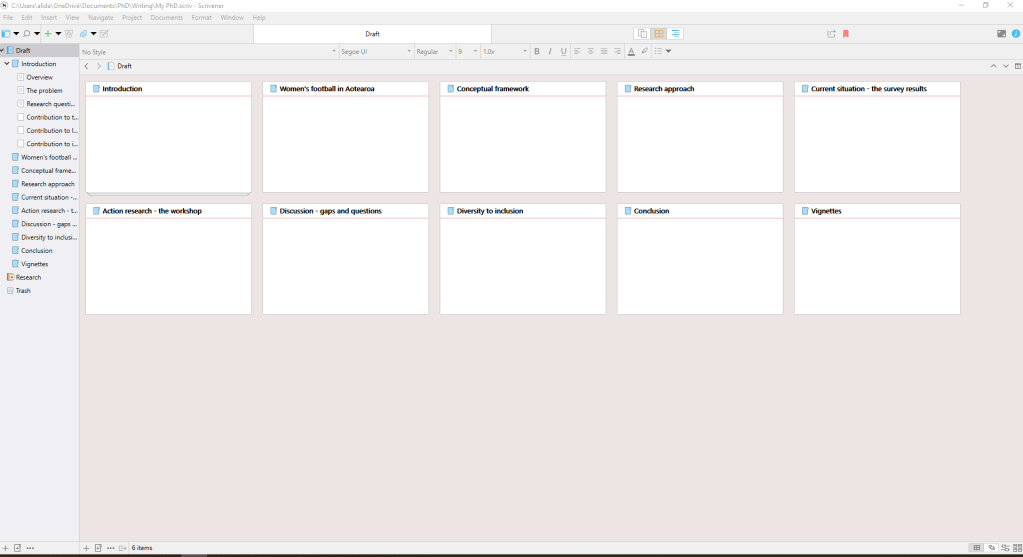
Scrivener is a programme to help organise large documents like books OR a thesis. It’s not that intuitive, but once you get the hang of it, it’s super handy. It has a one off cost, of $74 NZD, which includes a small Education discount. I’m still getting my head around it, but really like it. I think it’s a case of spending weeks swearing at MS Word when it autocorrects what you’ve just changed, or paying the $74 for Scrivener.
Scrivener is not only helpful for sorting out the order, (through dragging and dropping either in the “binder” menu on the left or in the main screen) you can export it as a Word doc or a PDF, it tells you the word count of the whole document as well as each section and how many words you have typed that day! You can even set a word target.
Data visualisation
Two websites to help bring your data to life!
Canva
- https://www.canva.com/
- Lots of templates, mostly social media graphics
- Visually soothing
- Publish straight to social media
- Links with other programmes e.g. MailChimp
Infogram
- https://infogram.com/
- Infographics, reports and maps
- Better for data than Canva – can enter data and create a range of graphics.
I use both Canva and Infogram together because they have different strengths – Canva is visually much more pretty, whereas Infogram has more options for graphs for your data.

That’s it! I hope this is helpful! If you have any experiences or thoughts on any of these tools, or have something that you use, please let me know!
 Alida Shanks